WorkBuddy Puts a Browser in the Agent's Hands: Independent Tabs, Its Own Cursor, Mobile Dispatch
Hello everyone, I am Cang He.
Brothers, WorkBuddy's updates have been too frequent lately, and new features are being pushed hard.
Many friends have been urging updates on our "WorkBuddy Practical Blue Book", and we also want to bring you some of our practical WorkBuddy playstyles.
WorkBuddy recently added a browser control feature, which can directly open web pages, click, and browse content in my already logged-in browser.
With the mobile app, I can also assign tasks to the computer anytime, without having to stay in front of the screen.
Even better, it works in a dedicated "WorkBuddy tab group" with its own mouse cursor, it doesn't take over my mouse, nor does it occupy my current window.
I can switch to reply to messages or look at other web pages, without having to wait for it.
It does its thing, I do mine.
💡 Independent tab group + independent cursor means that while WorkBuddy works, you can go do other things without being interrupted.
Actually, I've been looking forward to this feature for a long time. One of Codex's highlights is its browser use capability. Now that WorkBuddy has this ability, it works even better.
Below are some of my practice experiences, which will also be synced to the "WorkBuddy Practical Blue Book". Everyone is welcome to star.
Reading documents, sorting playstyles
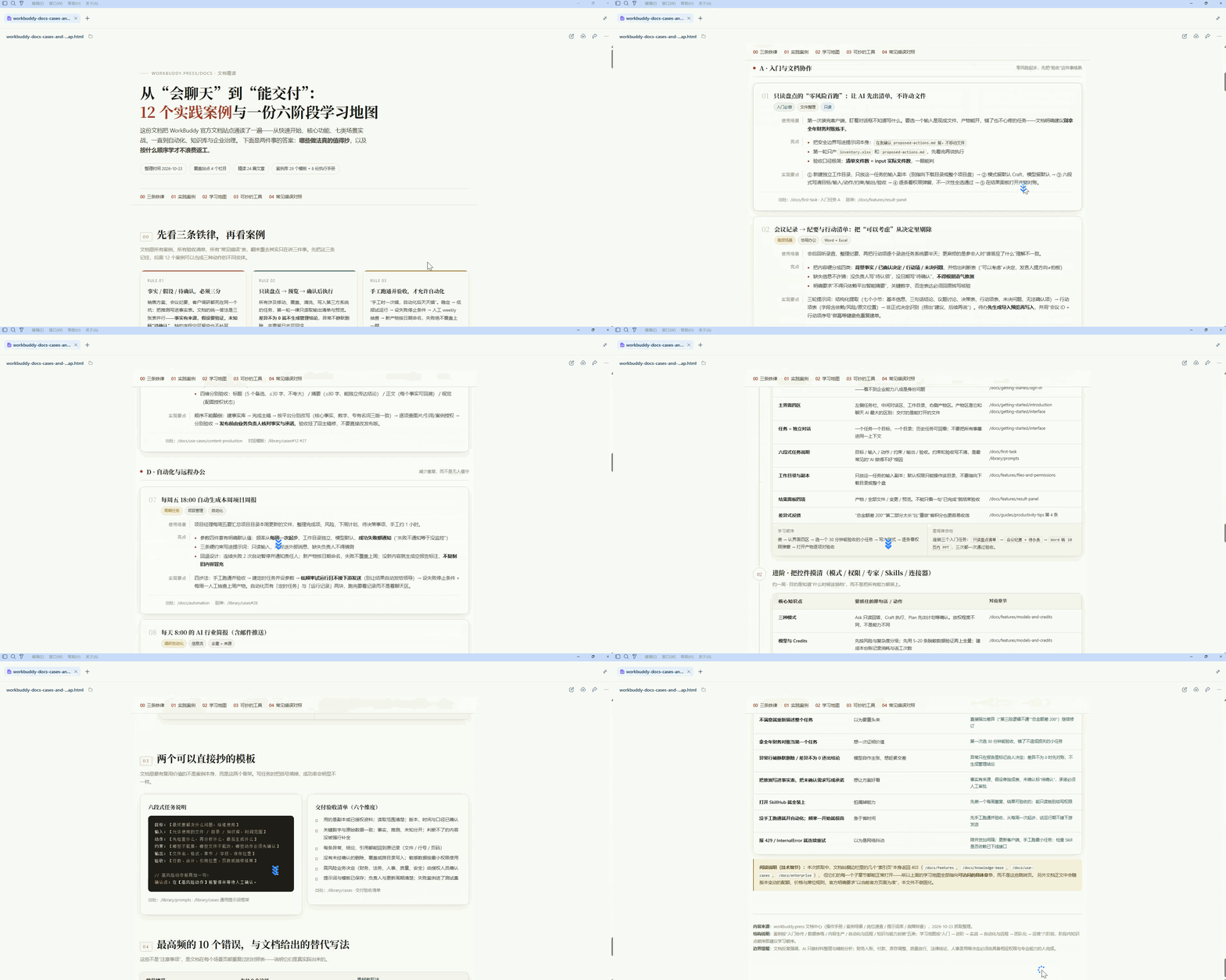
It happened that WorkBuddy officially released a lot of interesting cases recently, so I sent the official documentation to WorkBuddy, asking it to read through it and organize some interesting playstyles.
After receiving the task, WorkBuddy split the work into four steps:
- Open the official documentation site and review the directory structure to see how many documents there are and what they cover.
- Classify the cases by topic, such as browser automation, office efficiency, data organization, and sort them into different baskets.
- Read each one thoroughly, extracting the playstyle, prerequisites, and what problems each case can solve.
- Finally, compile a learning map telling me which cases a beginner should start with and in what order to study.
Throughout the process, it would flip through pages while syncing progress in the conversation, reporting what it had flipped through and what it had read, not working silently until the end.
Embedded content "Document organization.mp4" was not published with the share.
In less than ten minutes, it finished.
The cases in different categories and what they can do were clearly listed, and it even produced a learning map of how to learn and where to start.
Filling out expense reports, freeing your hands
Reading documents and organizing materials is quite nice.
But the work in the browser isn't just about looking; some requires manual filling.
For example, expense reimbursements: every time I have to fill in the relevant information into the enterprise OA system. Doing this repeatedly is annoying.
This time, I first logged into the enterprise OA system in the browser, then sent the reimbursement information and requirements to WorkBuddy, asking it to fill out the reimbursement form and submit the application.
WorkBuddy read the reimbursement information I sent, opened the OA system to find the reimbursement application, then checked the fields, verifying the invoice amount, reimbursement reason, date, and other information against the requirements I sent, confirming which field to fill.
Embedded content "Expense form filling.mp4" was not published with the share.
What reassures me most is the submission step: WorkBuddy lists the filled information for me to review and only submits after confirming there's no issue.
Honestly, for operations involving submission, I'd worry about AI messing up; this design is quite thoughtful.
With WorkBuddy, it's much faster than manual filling. Really nice.
Playing novice, experiencing the website
I also wanted to see if it could help me experience a website and point out problems in actual use.
As it happens, a while ago I upgraded the CodexGuide website from top to bottom.
To be honest, after the upgrade, I took a tour and was quite satisfied, haha U•ェ•U
But then I thought: if a complete novice opens this website for the first time, can they find the content they want to learn? And after finding it, can they follow along?
I wasn't sure about that, so I had WorkBuddy play the role of a novice and fully experience the website.
I sent the request to WorkBuddy; it opened the website and started seriously experiencing it. Honestly, WorkBuddy's operation cursor is kinda cute.
I opened the browser to observe, and wow, WorkBuddy was like a curious child, treating itself as a first-time novice, scrolling and switching, watching with great interest.
It first browsed the homepage to see if it could understand at a glance what the site was about, then followed the navigation to find tutorials, walked through them step by step, and saw if it could execute the steps.
If it encountered a problem on each path, it noted it down and finally sorted by severity.
In between, it would return to the homepage and walk another path to verify whether the problem was common, a persistence much like a tester.
Before long, it gave me such a report.
It wrote out which parts were easy to understand and helpful for beginners, and which parts might confuse novices.
Embedded content "codex case effect.mp4" was not published with the share. Where it saw problems, it also gave suggestions on how to improve, even making a page design plan for me.
Assigning tasks from mobile, reviewing Bilibili comments
All the previous tasks were assigning WorkBuddy to operate the browser on the computer.
But you can also assign tasks from the phone. By opening the mobile mini-program or app, you can send tasks and see results, and previous conversations and files are synced, no need to transfer back and forth.
Like I have several devices logged into WorkBuddy. On the phone, I can pick which device to use, then let it work, and I can also assign tasks to different devices at the same time. 😎
For example, recently I've been trying to make Bilibili videos. After each post, I want to see everyone's feedback and what to change next time.
Metrics like views and interactions can be seen in the backend.
But to know which parts people are interested in and what they didn't understand, I have to go through the comments.
Hundreds of comments, reading one by one, then sorting out recurring topics and suggestions, takes a lot of time.
So this time, I directly assigned this task to WorkBuddy on my phone.
After sending the task on my phone, I went off to do other things. It worked slowly on its own device, and the results were synced back to the phone.
Embedded content "Bilibili mobile.mp4" was not published with the share.
After a few minutes, the review was done.
The video's conversion ratio, how active the comment section was, and people's attitudes were all organized in it.
Topics that were repeatedly mentioned in the comments were also grouped together, and typical comments were picked out, finally giving suggestions for adjusting future video creation.
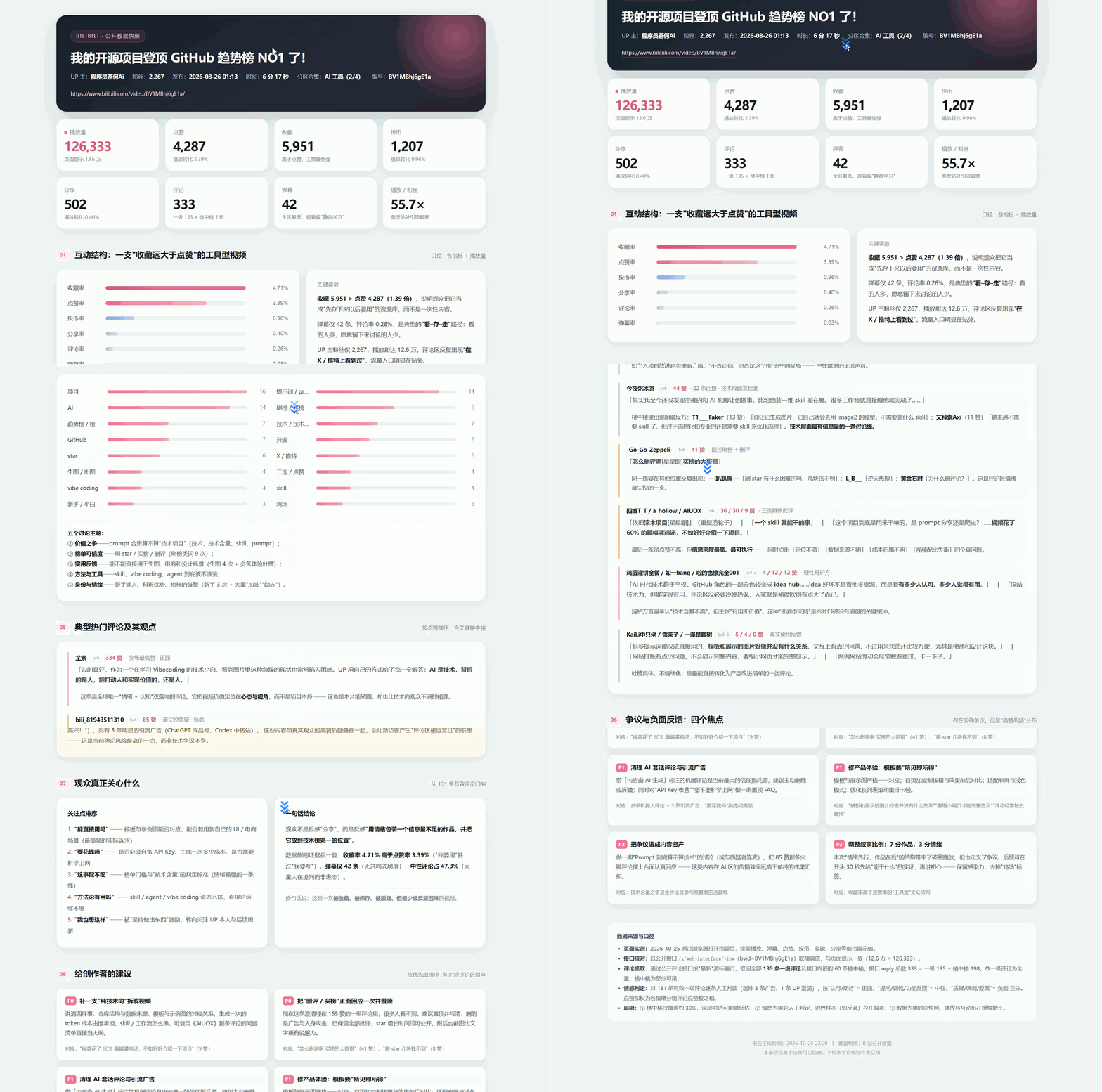
When I flipped through the comments it organized, one caught my emotion.
A friend said, AI is technology, but behind it are still people; what moves people and delivers value is also people.
💡 That hit home. No matter how strong the tool, what ultimately moves people is the content itself. Thinking that someone seriously watched the video and that my content also helped everyone made me feel warm.
After talking so much, I believe everyone wants to know how to use it. Actually, it's very simple.
First, update the WorkBuddy client to the latest version, then open settings, find the agent, and click to install.
The browser extension supports Chrome, Edge, and QQ Browser. Choose the one you use and install it.
After installing the extension, return to the previous page and turn on "Allow WorkBuddy to control browser". Once both are done, it can operate the browser.
Then input your needs in natural language and use it.
Open the browser and you can see WorkBuddy operating.
⚠️ Reminder:
Although this feature is really cool, don't rush to hand everything over to it.
WorkBuddy operates websites you're already logged into. When encountering captchas, sliders, slow page loads, or website redesigns, you may need to take over yourself or retry.
Honestly, as I write this, I feel that collaboration between AI and humans is becoming more and more convenient.
Let it help find problems on websites, sort feedback from videos, and have someone go through things for me first.
I don't have to do everything from scratch, and I can focus my time and energy on creation.
If it were you, what would you most want it to open the browser and do for you? Share in the comments.